
Workspaces and invites
A workspace is where a team talks: its own channels, people and settings. You can belong to several workspaces and switch between them from the rail on the left.
| Role | Can do |
|---|---|
| Owner | Everything an admin can. Whoever creates the workspace is its owner, and can hand it to someone else. The owner can’t be deactivated. |
| Admin | Change workspace settings, invite people, change roles, deactivate people, manage webhooks, the punch clock and the phone system, and delete anyone’s message in a channel. |
| Member | Use channels, DMs, huddles and meetings, create channels, and invite guests into channels they’re in. |
| Guest | Only the channels they were invited to, and the people in them. See Guests. |
On Corporate and Enterprise, an owner or admin can also give a member admin roles, so they manage billing, the phone system or people without being an admin.
The workspace name
Section titled “The workspace name”The workspace name sits at the top of the sidebar, next to New message. Long names get a slightly smaller font, and a name that still doesn’t fit ends in “…”: point at it to see it in full. A wider window, or a shorter workspace name, shows more.

Create a workspace
Section titled “Create a workspace”Open the workspace menu (click the workspace name at the top of the sidebar) and choose Create a new workspace, or click + at the bottom of the workspace rail and choose Create a workspace. Give it your company or team’s name.
Anyone with a confirmed email address can create a workspace for their own team, up to two. Owners and admins of an existing workspace can create more for their company. A guest can create one for their own company from the guest callout in the sidebar. New workspaces start on the Free plan, and their creator is the owner. See Sign up your team.
On a day with an unusual rush of new sign-ups, Freesbe can stop new workspaces for a while to keep out automated sign-ups. If it says it can’t create new workspaces right now, try again the next day or write to support@freesbe.net.
Invite people
Section titled “Invite people”Open the workspace menu and choose Invite people (or Workspace settings → People → Invites).

By email
Section titled “By email”- Enter one or more addresses, separated by commas or new lines (up to 50 at a time).
- Choose whether they Join as a Member or an Admin.
- Click Send invite.
Each person gets their own single-use link, good for 7 days, and replies to the email go to you. The email also has Get the desktop app links that download the app for Mac, Windows or Linux straight away, plus a link to the install steps, so nobody has to search for it. People who open a link instead see a Download for … link for their computer under the join form.
 To prevent spam, one address can get 3 invites a week from a workspace, and a workspace can send
100 invite emails a day. Addresses over the limit are reported as held back.
To prevent spam, one address can get 3 invites a week from a workspace, and a workspace can send
100 invite emails a day. Addresses over the limit are reported as held back.
With a link
Section titled “With a link”Under Create a link to share, choose:
- Join as: Member or Admin.
- Expires after: 1, 7, 14 or 30 days.
- Can be used by: 1, 5, 10, 25 or 100 people, or No limit.
Copy the Invite link and share it however you like. Anyone with the link can join until it expires or is used up, so share it carefully.
People who open the link see the workspace’s name and logo, who invited them, and a short sign-up form:
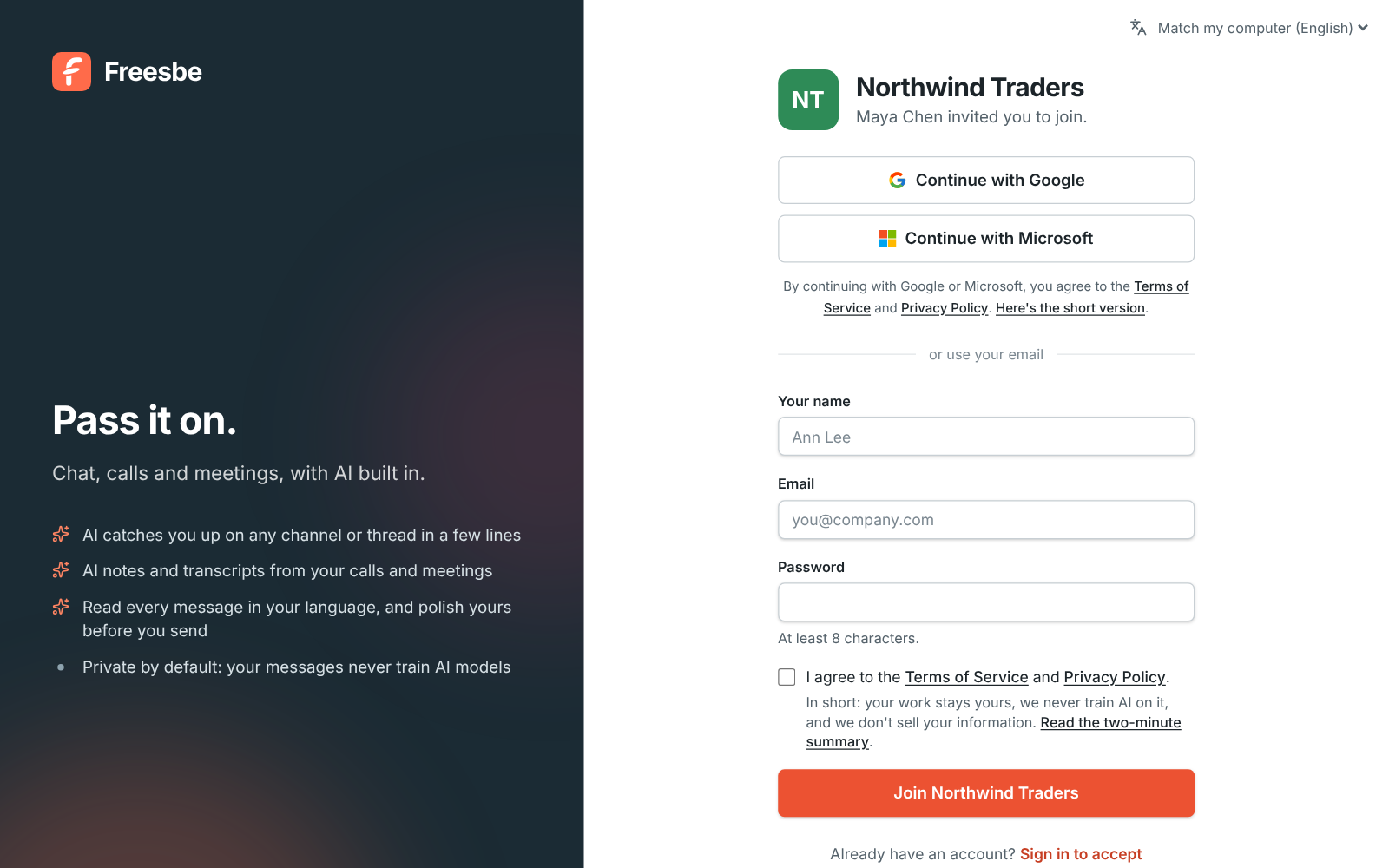
On the Corporate and Enterprise plans, invite links can use your company’s own address, like
https://meetme.acme.com/invite/…. See Custom domains.
Link previews
Section titled “Link previews”When you paste an invite link into Slack, Teams, WhatsApp, iMessage, LinkedIn or X, it unfurls into a card with your workspace’s name and logo (or its initials when it has no logo), so people know who’s inviting them. The preview shows nothing else: not who sent the invite, not your channels or members. Guest invites and meeting links get the same kind of card. A revoked, expired or used-up link shows the plain Freesbe preview.

The card follows your workspace name and logo. Apps cache previews, so a change can take a day to show in a link that was already shared.
Manage invites
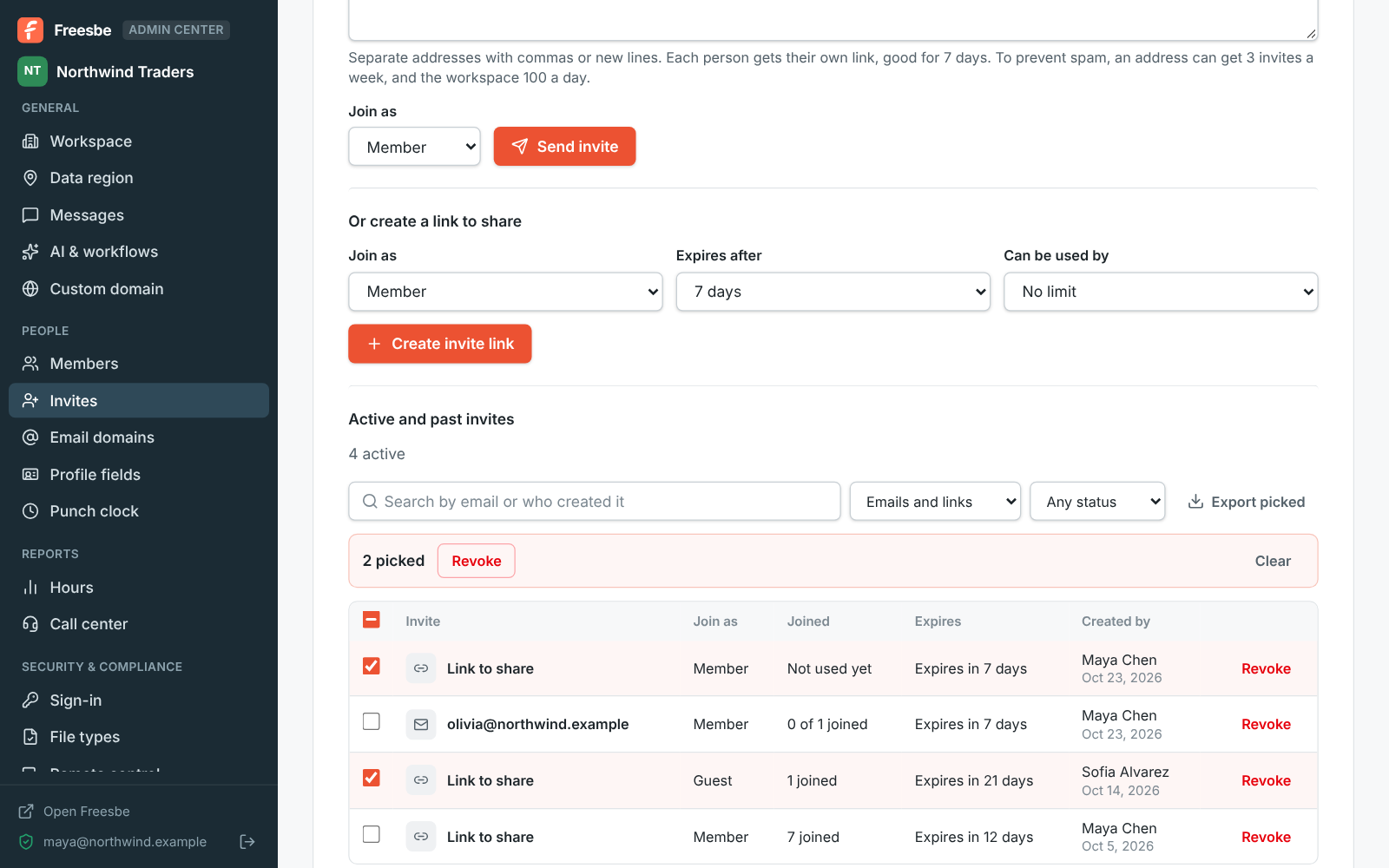
Section titled “Manage invites”Active and past invites lists every invite with who created it and whether it’s Expired or Used up. Revoke an invite to stop its link working right away. People who already joined stay.
In the Admin Center, People → Invites shows them as a table: search by email or by who created the invite, show only emailed invites or links, and only active, used-up or expired ones. Tick several invites to Revoke them at once, and Export CSV saves the invites shown (or only the ones you ticked).
Join by email domain
Section titled “Join by email domain”Instead of inviting everyone one by one, let anyone with an address at your company’s domain join on their own, like Slack’s approved domains. Open Workspace settings → People → Email domains.
Add a domain
Section titled “Add a domain”- Under Add a domain, enter your company’s email domain, the part after the @, like
northwind.example. - Choose whether people Join as a Member or an Admin.
- Turn on An admin approves each person if you’d rather look at each person first. It’s always on for admins: nobody becomes an admin of your workspace without someone checking.
- Click Add domain.
Freesbe then shows a TXT record. Add it where your domain’s DNS is managed (GoDaddy, Namecheap, Route 53, Microsoft 365 and so on):
| Type | Name | Value |
|---|---|---|
| TXT | _freesbe-verification.northwind.example |
freesbe-verification=… (copy it from the page) |
Freesbe looks for the record every few minutes for a week, or click Check now. Once it’s found, the domain shows Verified and you can remove the record. A domain that’s still waiting lets nobody in.
- Webmail domains like gmail.com, outlook.com or yahoo.com belong to everyone, so they can’t be added.
- A subdomain counts on its own: add
eu.northwind.exampleas well if people have addresses there. A workspace can have up to 20 domains. - Several workspaces can verify the same domain, say one per team. People then pick which to join.
- Join by email domain works on every plan. People who join take a seat like anyone else, so a workspace without free seats asks an admin to add some first.
What people see
Section titled “What people see”Someone who signs up with a confirmed address at a verified domain, with a password, a sign-in code, Google or Microsoft, sees Join your team right after signing up: your workspace’s name, logo and size, and a Join button. One click and they’re in #general.

- Addresses must be confirmed first. Someone who signed up with a password gets a code by email, and only sees your workspace once they enter it. Google and Microsoft confirm the address themselves. So nobody can type in someone else’s work address and get in.
- They don’t need an invite, even while sign-up on Freesbe is otherwise invite-only.
- They can still create a workspace of their own instead, if they’re allowed to.
- Someone who already has an account sees the same list when they open + → Create a workspace from the workspace rail.
Approve people
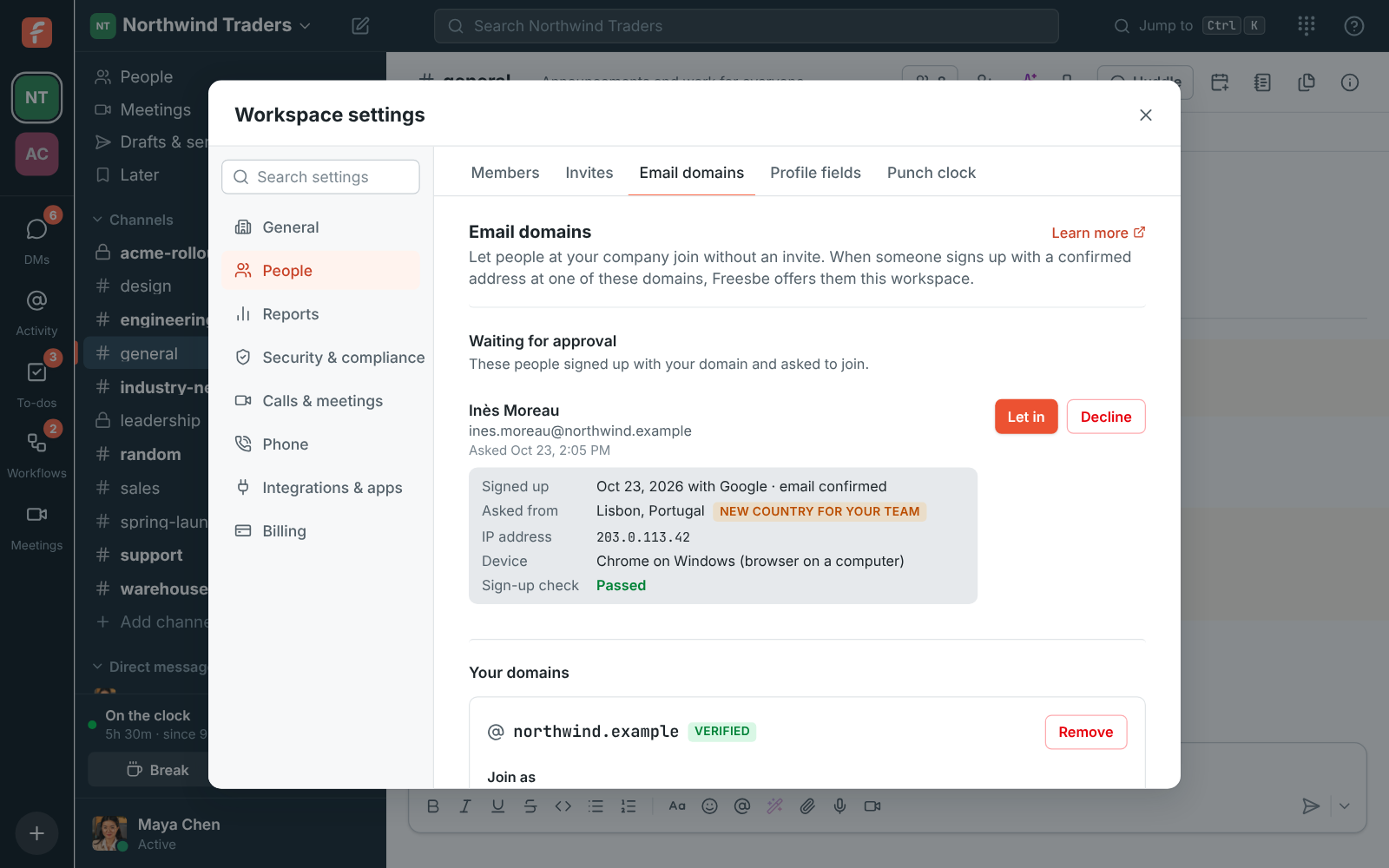
Section titled “Approve people”When An admin approves each person is on, the button says Ask to join. Every admin gets an email with a Review the request link, and the person shows under Waiting for approval in Workspace settings → People → Email domains. Click Let in or Decline; the first admin to answer decides. The person gets an email when they’re let in. Someone who was declined can’t ask again; send them an invite if you change your mind.
Both the email and the request show who is asking, so you can tell a new colleague from a stranger:
- Signed up: when they made their account, how (a password, Google, Microsoft or single sign-on), and that their email address is confirmed.
- Asked from: the city and country they asked from. New country for your team means none of your members was last seen there, which is worth a second look.
- Device: the browser or Freesbe app they used, and whether it’s a computer or a phone, like Chrome on Windows (browser on a computer).
- Sign-up check: Passed, or Needs a closer look when Freesbe’s checks of new accounts found something unusual. It doesn’t say what; ask the person, or someone who knows them, before you let them in.
- IP address: in Freesbe only, never in the email, since emails get forwarded.
Requests made before October 30, 2026 show only when and how the person signed up.
Adding and removing domains, changing them, and every approval or decline show in the audit log.
Remove a domain
Section titled “Remove a domain”Click Remove next to the domain. New people at that domain need an invite again; everyone who already joined stays.
Manage members
Section titled “Manage members”Workspace settings → People → Members lists everyone, with search by name, email or title.

- Change a role with the dropdown next to someone’s name: Member or Admin (or promote a Guest).
- Edit a profile with the pencil next to someone’s name: their title and work details, including fields only admins fill in. See Profile fields.
- Deactivate someone who leaves. They’re signed out and lose access to the workspace at once. Their messages stay. Webhooks they created turn off until another admin turns them back on, and their phone device is turned off. Reactivate brings them back.
Many people at once, in the Admin Center
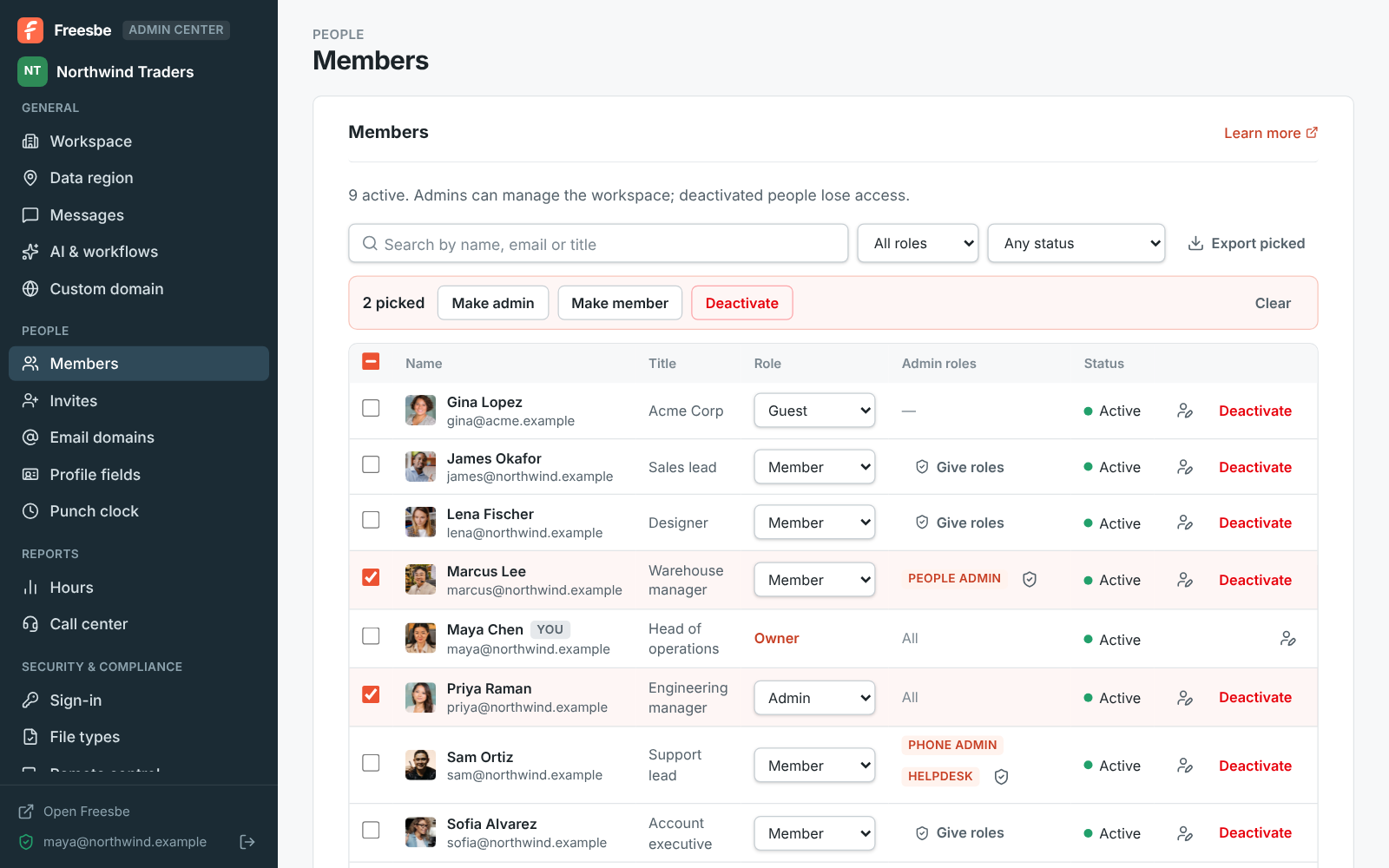
Section titled “Many people at once, in the Admin Center”In the Admin Center, People → Members is a table with each person’s title, role and status.
- Filter by role (Owner, Admin, Member, Guest) and status: Active, Not signed in yet (imported from Slack and waiting for their sign-in link) or Deactivated. Search finds names, emails, titles and companies.
- Tick people, or the box at the top for everyone shown, and a bar offers Make admin, Make member, Deactivate, Reactivate and Copy sign-in links. Freesbe asks you to confirm first, skips anyone the change doesn’t apply to (the owner, you, or someone who already has that role), and says how many it changed.
- Export CSV saves everyone shown, or only the people you ticked, with their name, email, title, company, role, status and time zone.
Admin roles
Section titled “Admin roles”On Corporate and Enterprise, a member can look after one part of the workspace without being an admin. In the Admin Center, People → Members has an Admin roles column: choose Give roles next to a member, tick the roles and Save. Freesbe asks you to verify it’s you first, and the change goes in the Audit log.
| Role | Opens in the Admin Center |
|---|---|
| Billing admin | Billing: plan, add-ons, invoices and usage. Together with Phone admin, buying phone numbers |
| Phone admin | Phone: the phone system, numbers, phone menus, call queues, call flows, call recording and the call log, and Reports → Call center. Not buying numbers, which costs money: that’s Billing |
| People admin | People: members, invites, email domains, profile fields and the punch clock, and Reports → Hours. They change members and guests, never admins, and can’t make anyone an admin |
| Helpdesk | Members to look people up, sign-in links for people imported from Slack, and Security activity. They can’t change anyone |
Someone with admin roles opens the Admin Center from the workspace menu like an admin does, and sees only their pages. Everything else (security settings, integrations, the custom domain, data region and closing the workspace) stays with owners and admins. Roles stop working if the workspace moves below Corporate, and come back with the plan. Owners and admins already have all of them.


Hand the workspace to a new owner
Section titled “Hand the workspace to a new owner”A workspace has one owner. To hand it over, for example before you leave the company or delete your Freesbe account, the owner picks Owner in the role dropdown next to an admin or member and confirms. Freesbe asks the owner to verify it’s them first. The new owner gets full control, including billing and closing the workspace, and the old owner becomes an admin. The audit log records it.
Only people who have signed in can become the owner: not guests, apps, AI agents, deactivated people or people imported from Slack who haven’t signed in yet.

Rename the workspace or change its logo
Section titled “Rename the workspace or change its logo”See Workspace settings.
Answers come from the Freesbe guides and are written by AI, so check the linked guide before relying on one. Please don't include personal details such as emails or passwords.